Fotoware integration
Connect Memlist to your Fotoware Veloz environment so that template editors can pick images directly from your Fotoware archives. Each administrator signs in with their own Fotoware account, so they only see the archives their Fotoware role allows. Selected images are copied into Memlist's own storage, which means images in sent emails keep working even if the original is later moved or removed in Fotoware.
The Fotoware integration is enabled per Memlist instance. Contact support@memlist.se if it is not yet activated for yours.
Step 1 - Create an application in Fotoware
Memlist needs an application in your Fotoware environment that users can sign in through.
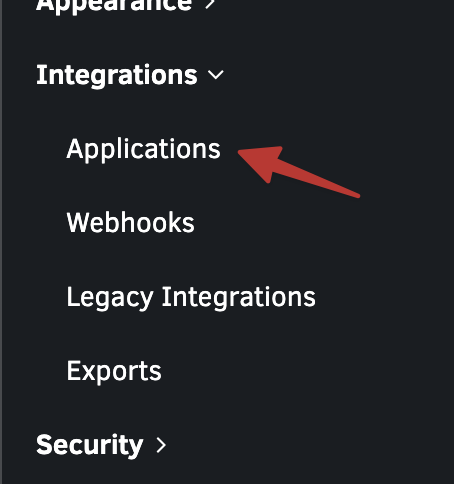
- In Fotoware, go to Integrations → Applications.
- Create a new application of type Web App / API.
- Set the redirect URL to your instance's callback URL:
https://<instance>.memlist.se/api/v3/fotoware-veloz/callback- for examplehttps://test.memlist.se/api/v3/fotoware-veloz/callback. - Make a note of the Client ID and Client Secret.
Step 2 - Add the API key in Memlist
In your Memlist instance, go to the Administratör page and open the API: Nycklar tab:
- Create a new API key.
- Select your instance's top/master company.
- Select the service Fotoware Veloz.
- Enter the URL of your Fotoware cloud.
- Enter the Client ID and Client Secret from the application you created in step 1.
- Enter the archive ID. You find it in the archive's fotoweb URL - in
/fotoweb/archives/5000-Images/the archive ID is5000. Also confirm in Fotoware that the application is granted access to this archive.
Step 3 - Connect from a template
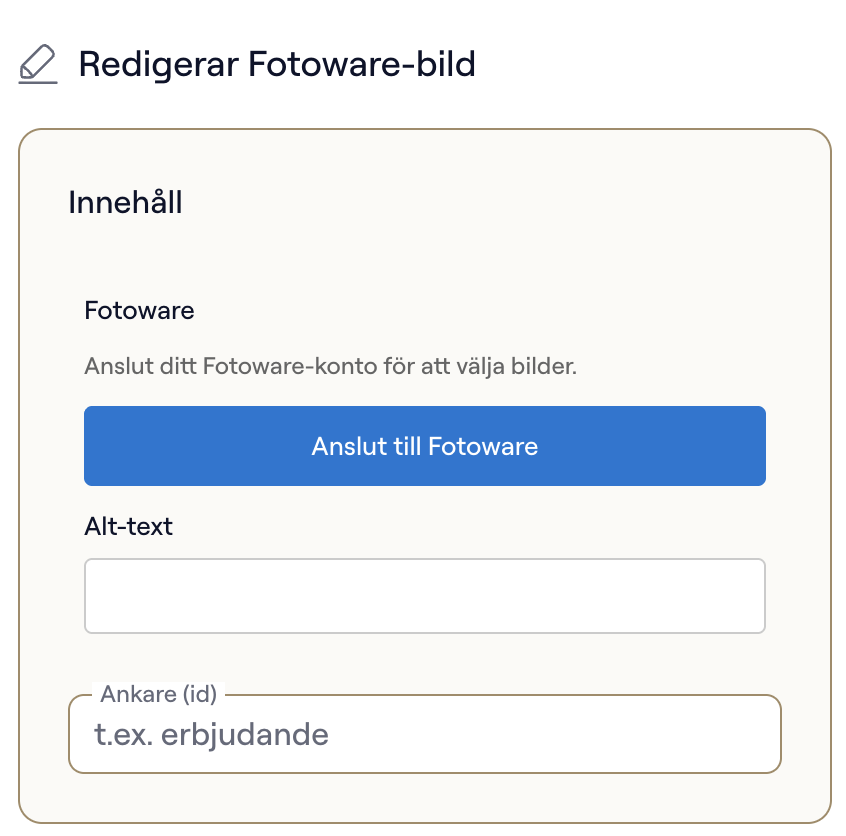
Once the API key is in place, open a template and add a Fotoware-bild component.
Click Anslut till Fotoware to sign in:
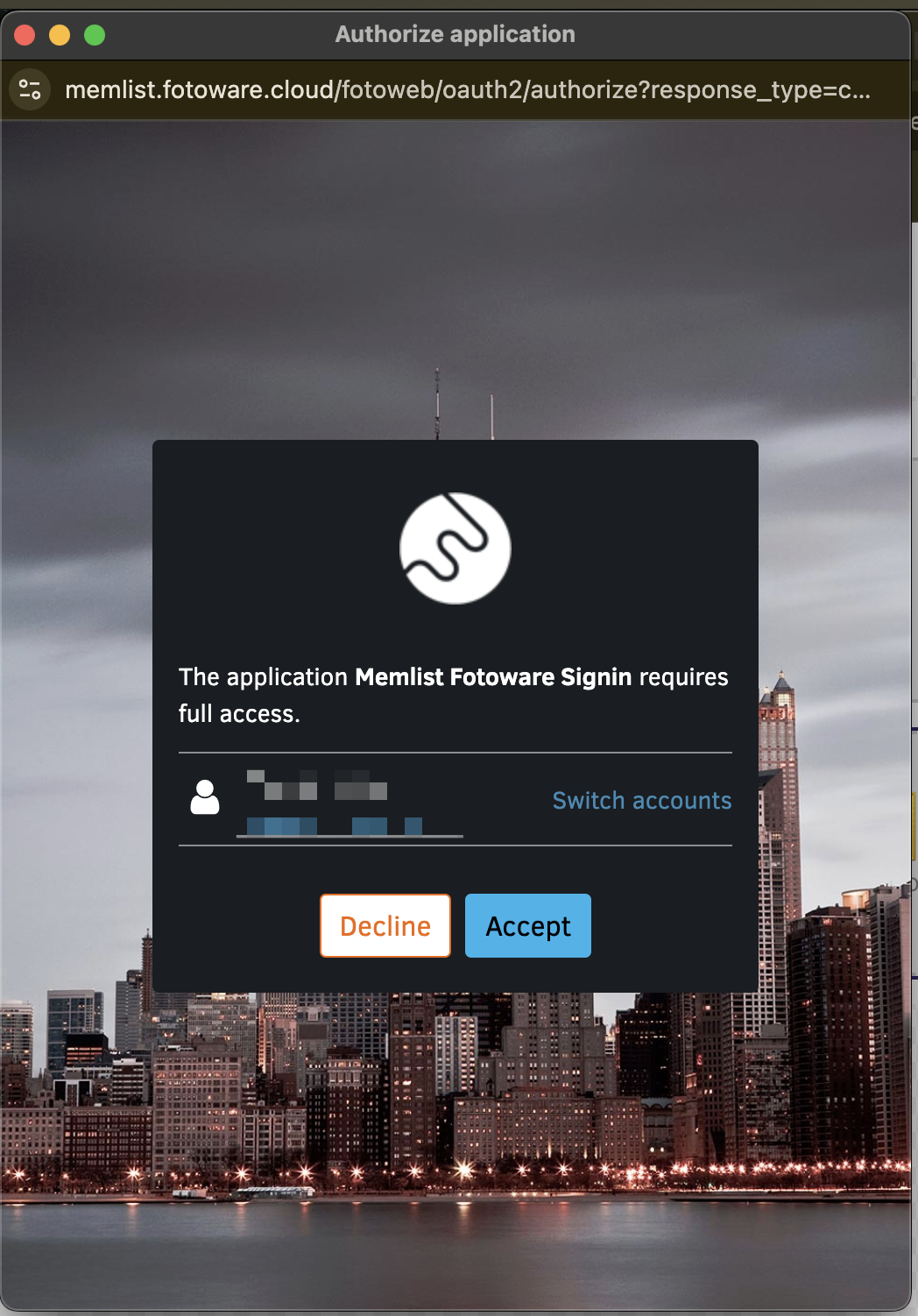
A new window opens where you authorize the application with your Fotoware account. Click Accept:
When the connection succeeds, the component shows Ansluten till Fotoware and you can start picking images from your archives.